Unity Scene Size Reduction Seminar Part 4: Animation
This article is a translated version of my original post on Qiita. Original (Japanese): https://qiita.com/segur/items/071e228258806f3e0113
Unity Scene Size Reduction Seminar Part 4: Animation
Reducing the size of Unity scenes is crucial for ensuring smooth performance on devices with limited specifications. After textures and models, animations often consume a significant amount of space. Here are some tips to make them more lightweight!
This article is a part of the fourth installment of the Scene Size Reduction Seminar, but you don't need to read the previous articles to understand this one. Enjoy reading if you're interested!
Unity Scene Size Reduction Seminar Series
- Seminar Part 1: Sorting by Size
- Seminar Part 2: Textures
- Seminar Part 3: Models
- Seminar Part 4: Animation ← This article
Review Your Animation Settings!
Let's review the settings for each animation! Select an FBX file and click the Animation tab in the Inspector window to see the following settings.
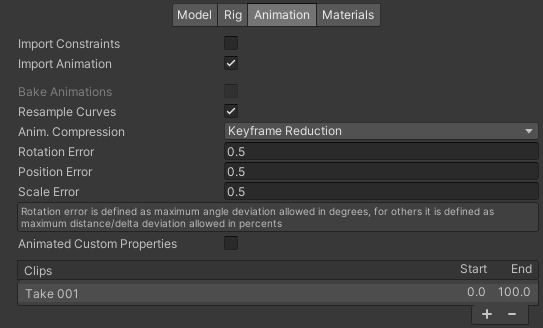
Here are some settings that might effectively reduce the size.
Anim. Compression
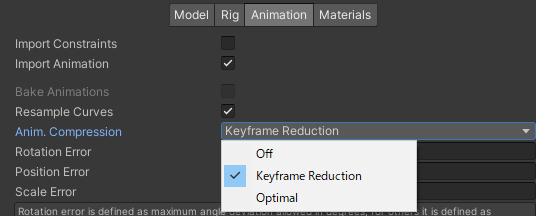
Anim. Compression is the setting for animation compression level.
Here are your options:
| Compression Type | Quality | Size | Function |
|---|---|---|---|
Off |
High | Large | No compression. |
Keyframe Reduction |
Medium | Medium | Reduces the number of keyframes based on criteria set by Rotation Error, Position Error, and Scale Error. |
Optimal |
Medium | Small | Although the specific algorithm isn't public, this article suggests it combines:
Dense format likely involves data compression techniques like quantization and encoding. |
Off results in a very large file size, so unless you have a strong reason, it's best to avoid it. If you've already optimized the original animation file thoroughly, then choose Off.
Optimal employs a newer algorithm that often leads to a smaller size than Keyframe Reduction, so if unsure, it's advisable to select Optimal.
Rotation Error
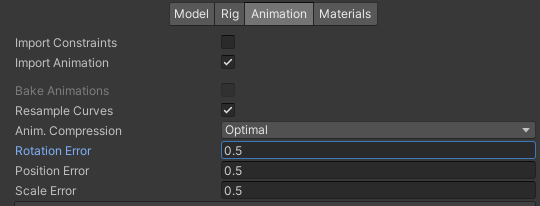
When Anim. Compression is set to Keyframe Reduction or Optimal, you can adjust Rotation Error.
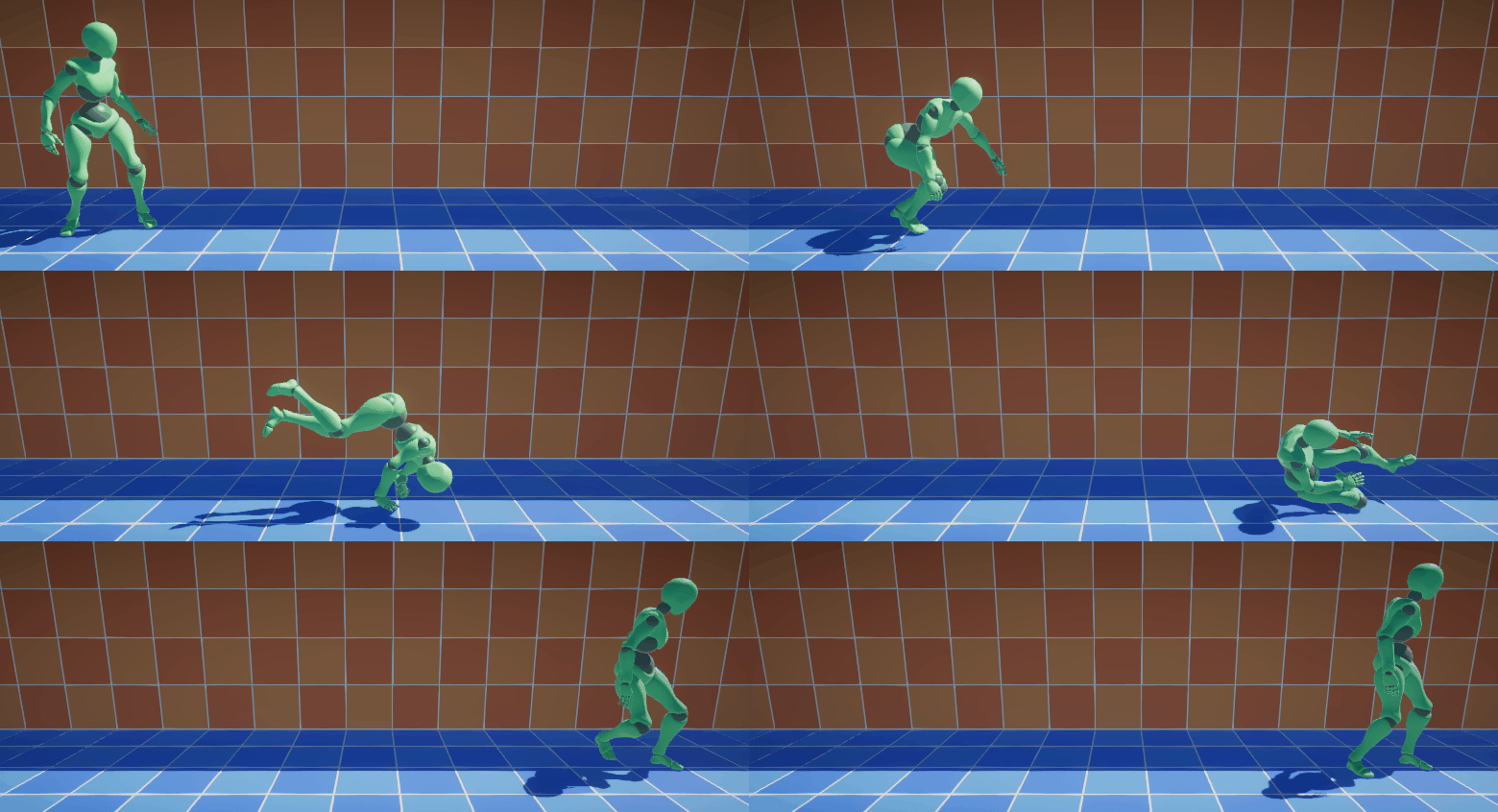
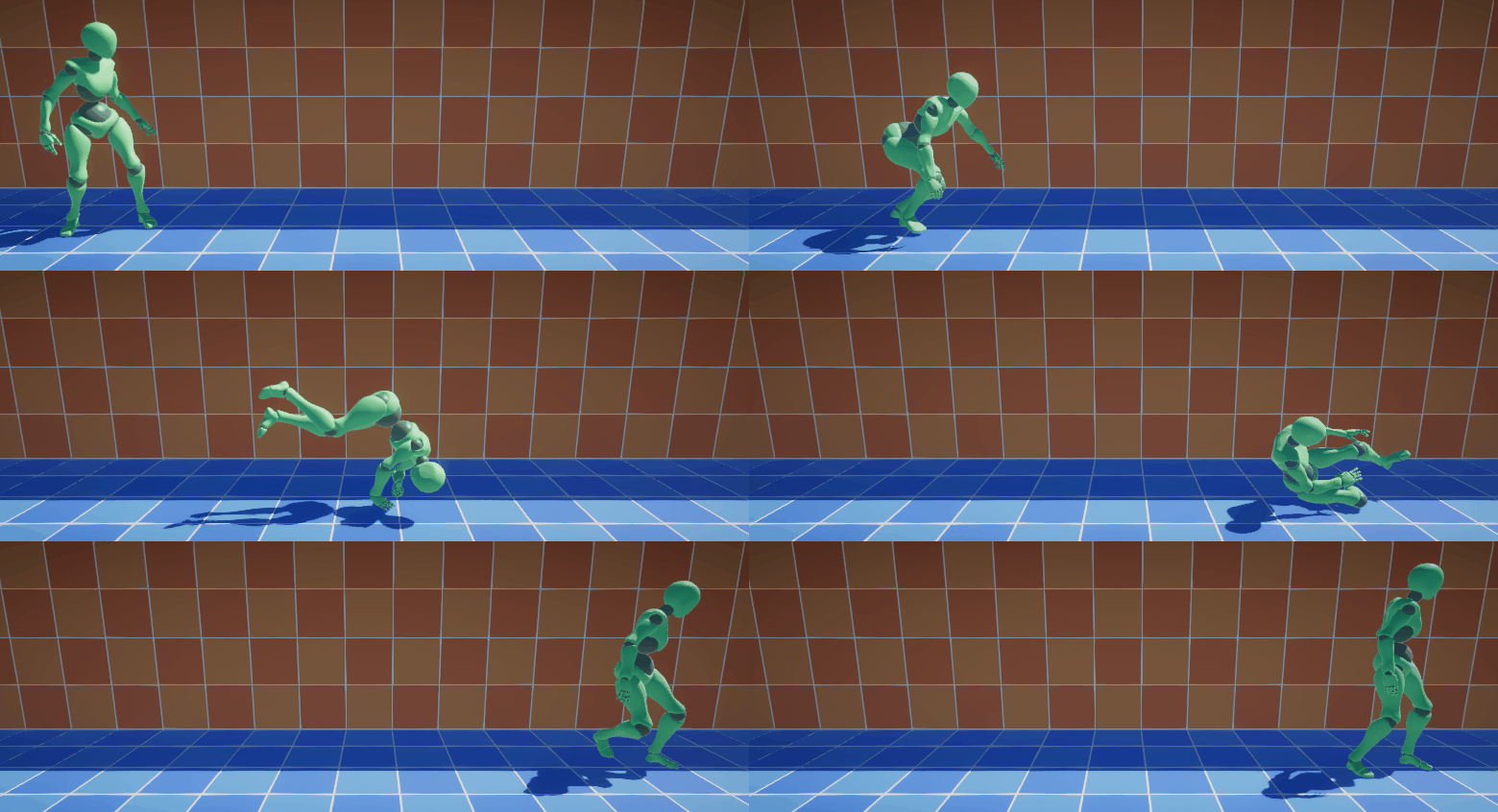
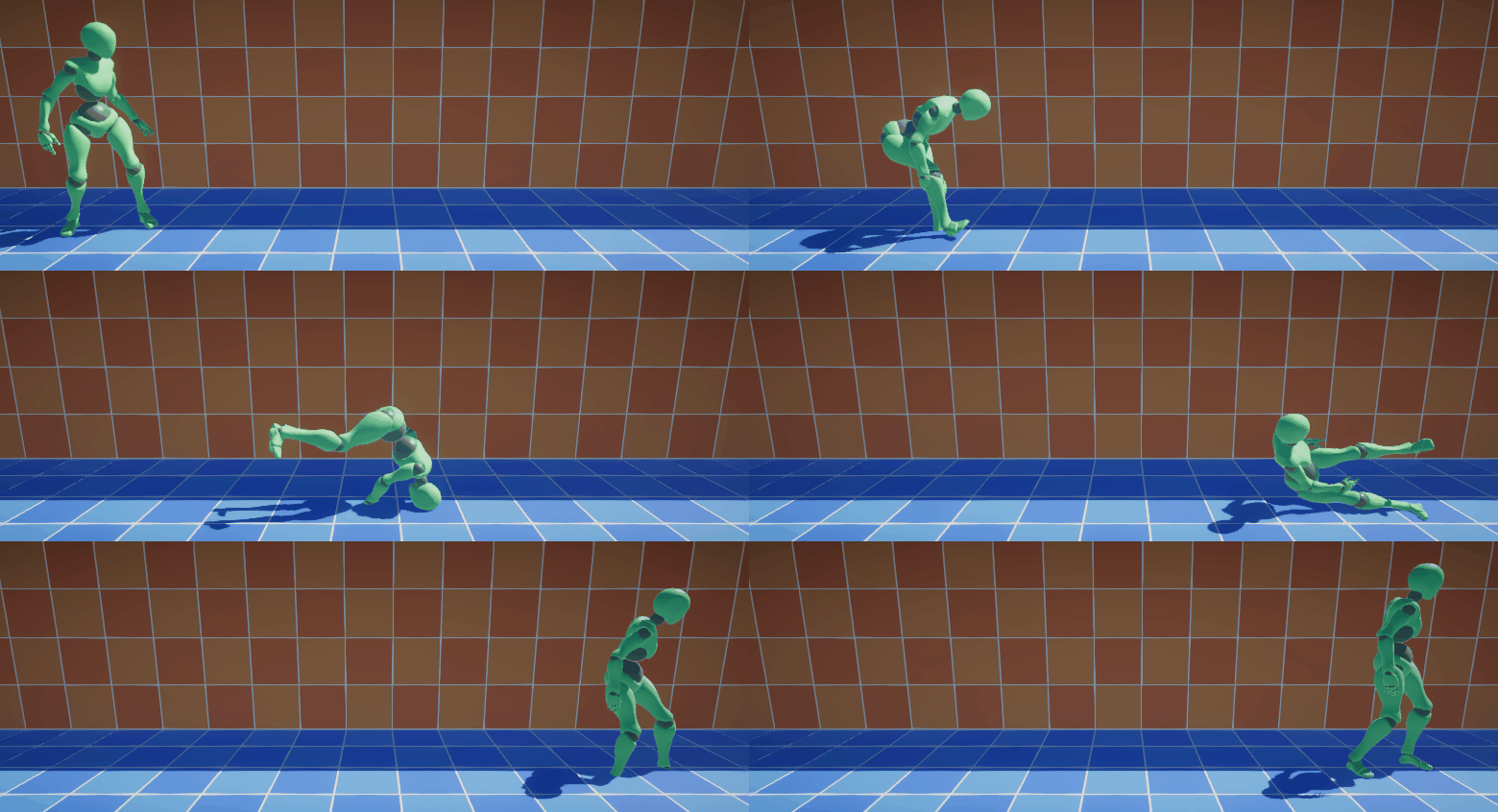
Rotation Error sets the maximum allowable rotation error during compression, in degrees.
Thus, the default 0.5 allows for a maximum rotation error of 0.5°.
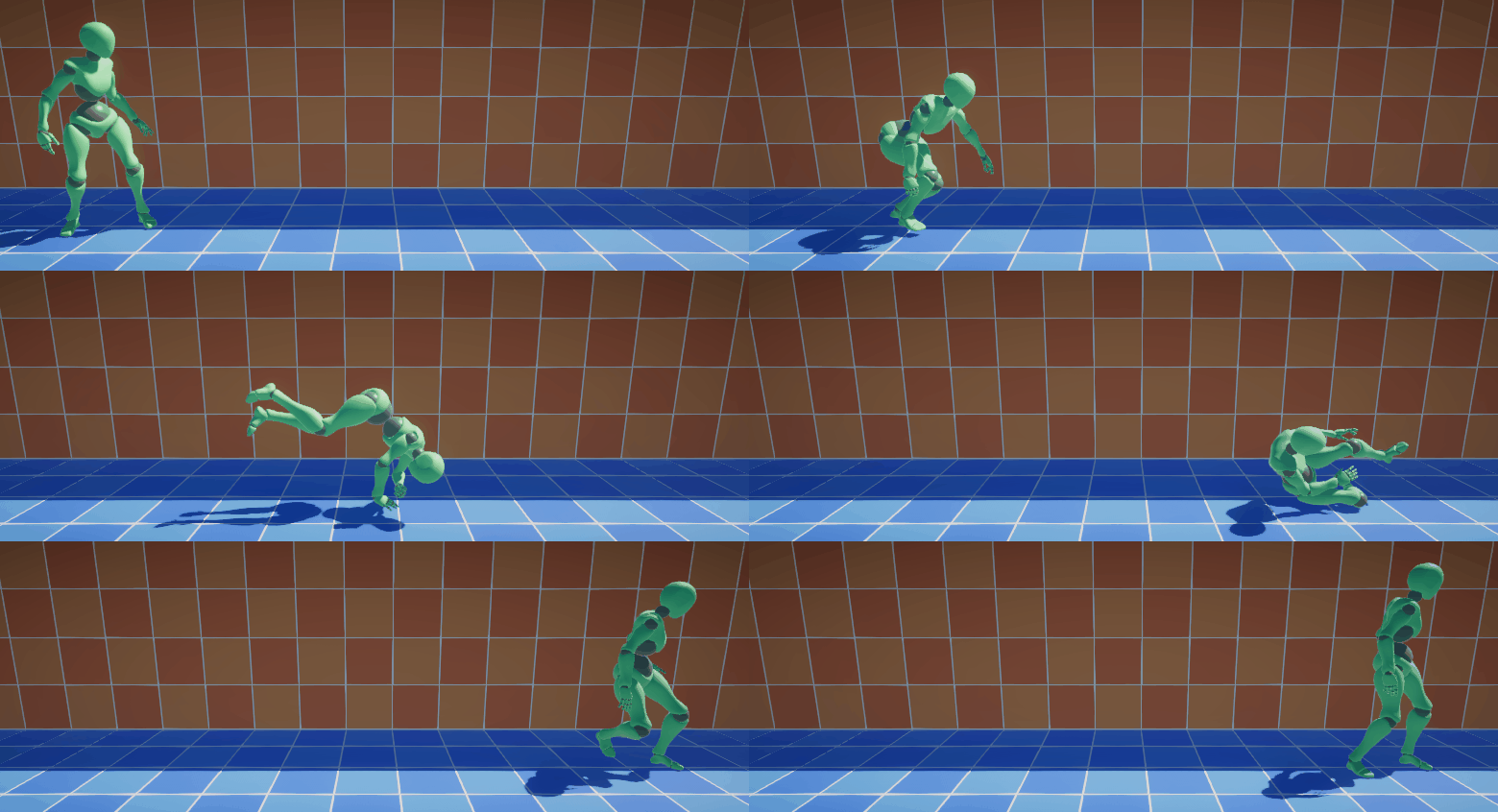
Here are some examples of compression results:
Rotation Error |
Size | Example |
|---|---|---|
| Original ( 0°) |
249kB 100.0% |
 |
0.5° |
119kB 47.8% |
 |
10° |
69kB 27.7% |
 |
100° |
14kB 5.6% |
 |
| Image credit: Animation Compression in Unity |
In the 100° example, the right foot no longer touches the ground and instead sinks into it, showing an error.
As Rotation Error increases, animation quality decreases, creating a trade-off between performance and quality.
The default 0.5° is of such high quality that the degradation is hardly noticeable, yet size is reduced by about half, so 0.5° is a safe default if you are unsure.
Position Error
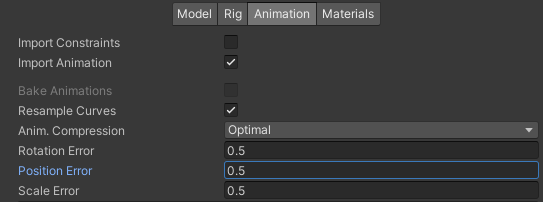
When Anim. Compression is set to Keyframe Reduction or Optimal, you can adjust Position Error.
Position Error sets the maximum allowable position error during compression, in percentage (%).
The default 0.5 allows for a maximum position error of 0.5%.
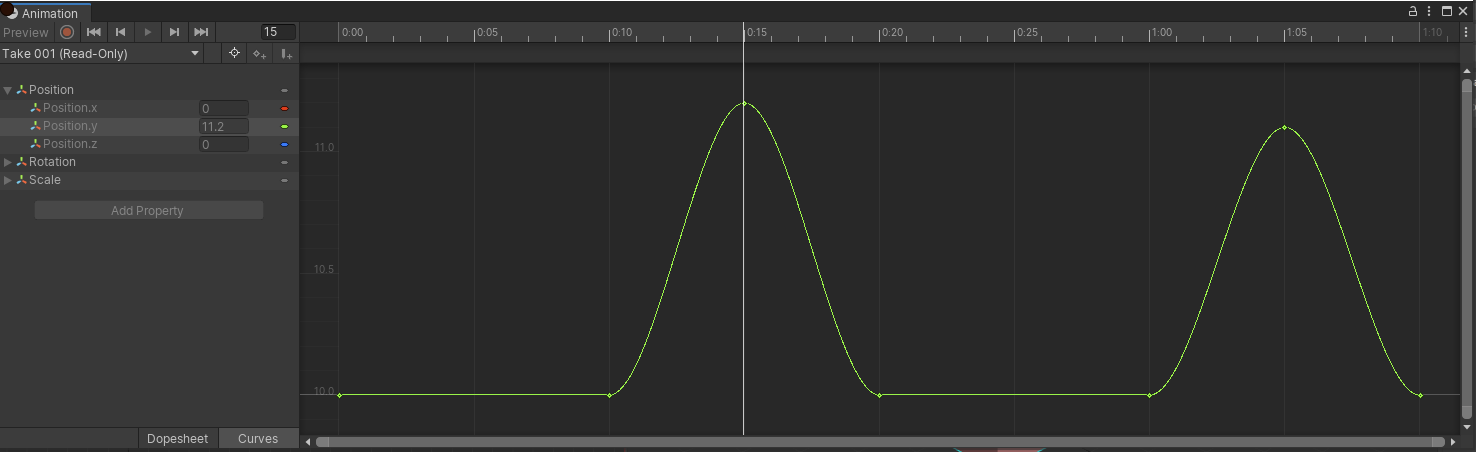
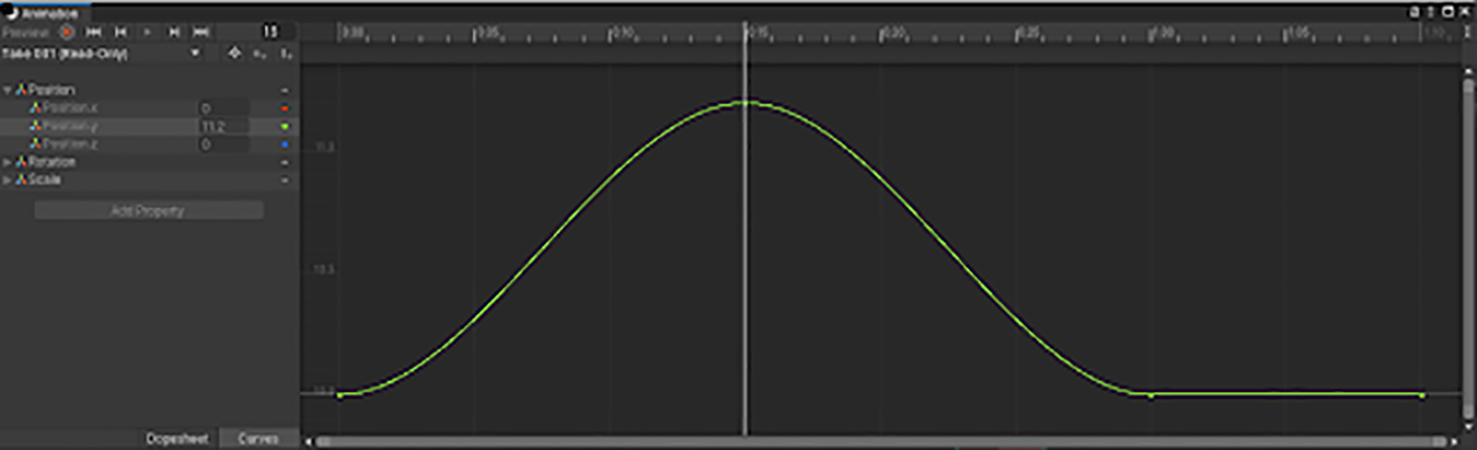
Here are some examples of compression results:
Position Error |
Animation Curve Example |
|---|---|
| Original ( 0%) |
 |
10% |
 |
| Image credit: Unity Documentation / Animation Tab |
The original animation curve has two peaks, but the compressed version lacks the right peak. This result is because keyframes within Position Error of 10% have been reduced.
Be cautious with Position Error; a higher value can drastically reduce quality.
Scale Error
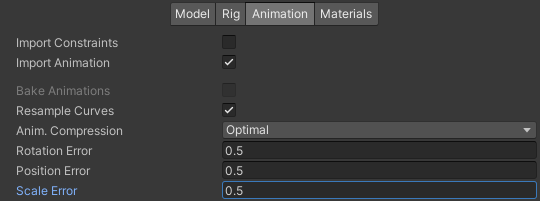
When Anim. Compression is set to Keyframe Reduction or Optimal, you can adjust Scale Error.
Scale Error sets the maximum allowable scale error during compression, in percentage (%).
The default 0.5 allows for a maximum scale error of 0.5%.
In Conclusion
This article referenced the following pages. Thank you for the clear explanations!
- Unity Documentation / Animation Tab
- Unity Documentation / Reducing File Size
- 20 Ways to Reduce the Size of Apps Made with Unity
- Animation Compression: Unity 5
- Animation Compression in Unity
This concludes the Unity Scene Size Reduction Seminar!
For those who have practiced these tips, Unity size reduction should no longer be intimidating!
If you found this helpful, I'd love for you to follow me on Twitter! (I often share information about VR and AR, but if that's fine with you, it would mean a lot!)
Thank you for your effort!