Achieving Full-Body Tracking in VRChat with VIVE Tracker (Ultimate)
This article is a translated version of my original post on Qiita. Original (Japanese): https://qiita.com/segur/items/1e47513cbc9dc72d0f48
Achieving Full-Body Tracking in VRChat with VIVE Tracker (Ultimate)
So you've got your shiny new VIVE XR Elite and VIVE Tracker (Ultimate), and you're wondering how to use them for full-body tracking in VRChat? This guide is for you!
Required Equipment
- VIVE XR Elite
- VIVE Tracker (Ultimate)
- Smartphone
Setting Up Your Environment
Prepare Your HTC Account
Make sure you have an HTC account ready to log in!
If you don't have an account, you can create one at the following URL: https://www.viveport.com/
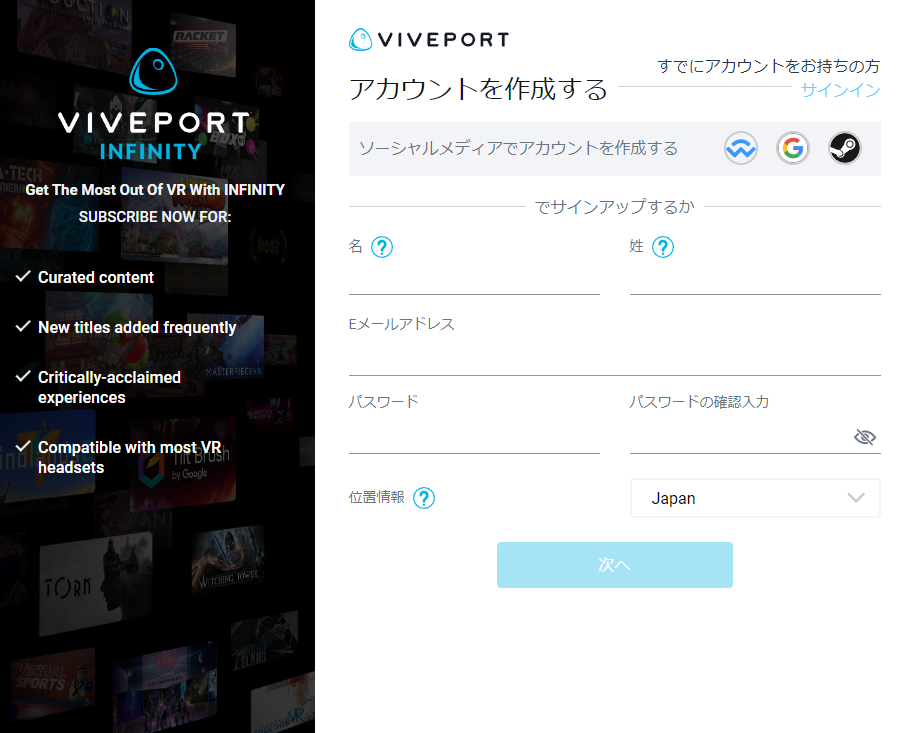
I personally flustered a bit as I forgot my password since I hadn't used my HTC account for years.
Install VIVE Manager on Your Smartphone

Install the VIVE Manager on your smartphone!
With VIVE Manager, you can configure the headset and trackers right from your smartphone. This is handy because tasks like entering passwords via VR can be cumbersome, but with VIVE Manager, you can easily copy and paste from your phone!
Download it from here:
- iOS: https://apps.apple.com/us/app/vive-manager/id1568995919
- Android: https://play.google.com/store/apps/details?id=com.htc.vive.appstore.mobile&pcampaignid=web_share
Set Up the VIVE XR Elite
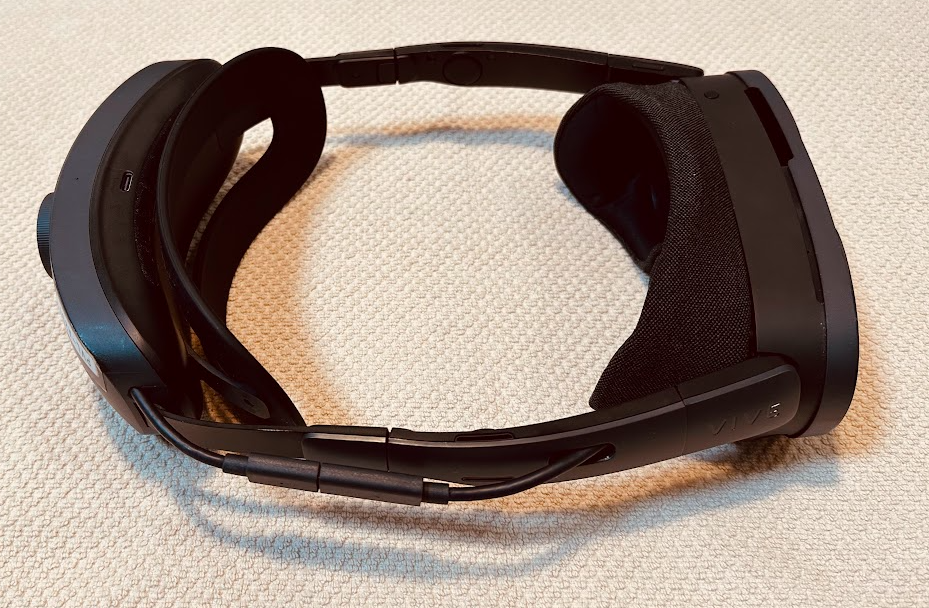
Follow the official documentation to set up your VIVE XR Elite:
https://www.vive.com/jp/support/vive-xr/category_howto/setting-up-headset-for-the-first-time.html
There are methods to set things up using just the headset, but using VIVE Manager is recommended as it simplifies tasks like password entry. The battery at the back is detachable, but if you're using a VIVE Tracker, the battery is necessary, so make sure to attach it.
Set Up the VIVE Tracker (Ultimate)
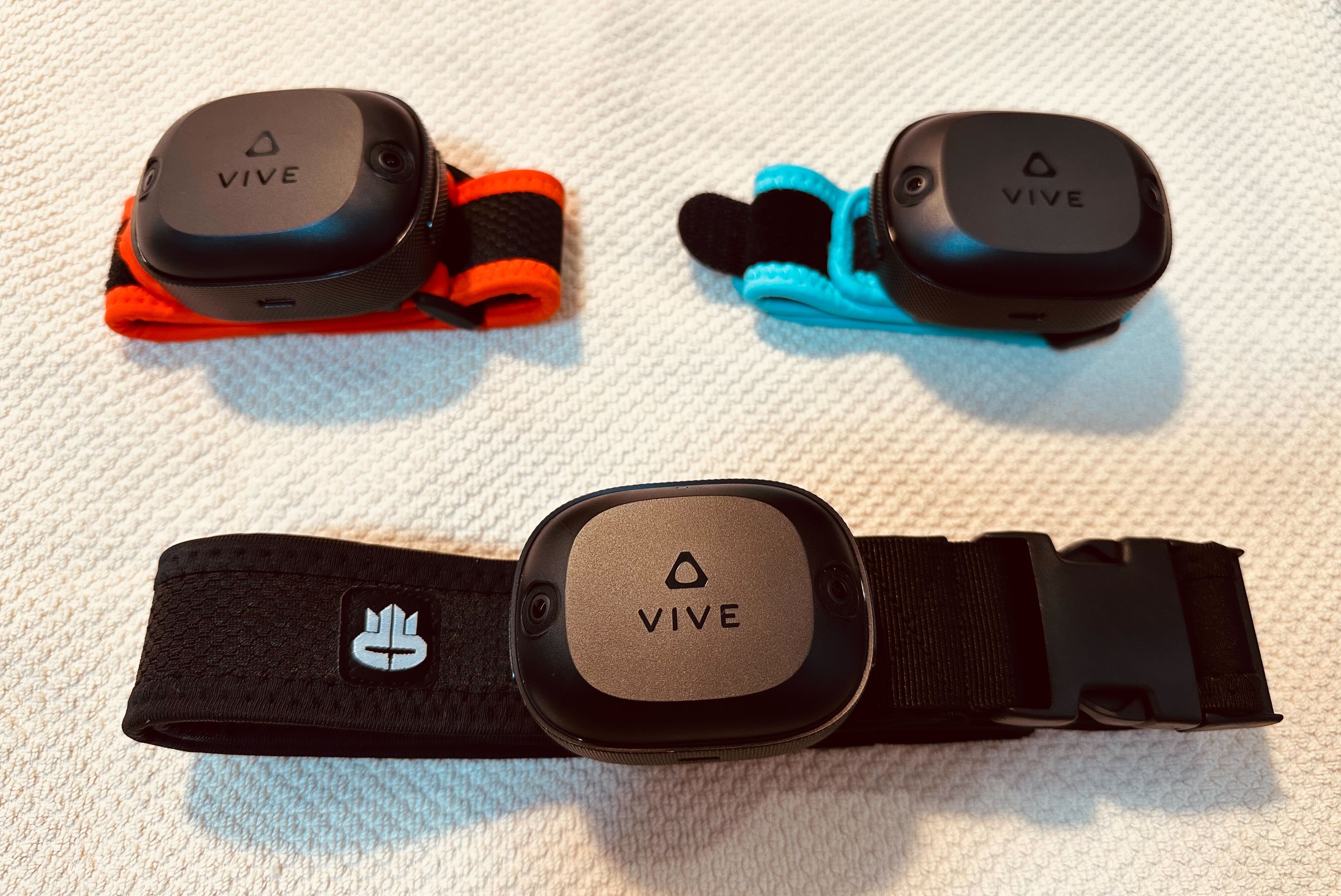
Refer to the official documentation for setting up the VIVE Tracker (Ultimate):
https://www.vive.com/jp/support/ultimate-tracker/category_howto/settinng-up-vive-ultimate-tracker.html
You have both headset-only and VIVE Manager methods available; either works fine. Following the steps will lead you to insert a dongle into a USB port:
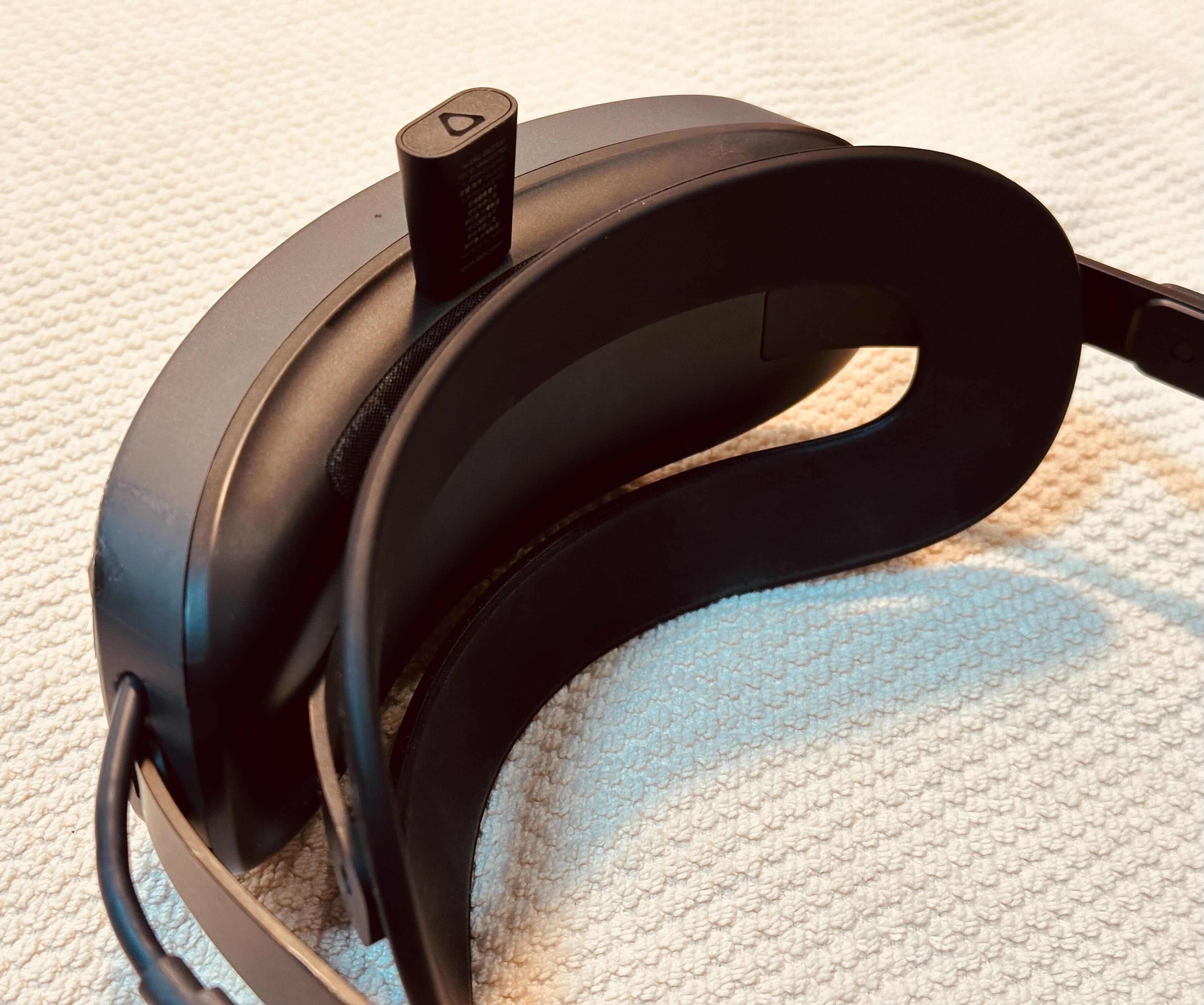
Since the dongle occupies the USB port, you cannot connect the headset directly to the PC via USB. For PCVR games, use VIVE Streaming for wireless connections!
Assigning the VIVE Tracker (Ultimate) to Joints
In my case, I have three trackers, which I plan to assign to the waist, left ankle, and right ankle. For roles assignment, refer to the official documentation:
https://www.vive.com/jp/support/ultimate-tracker/category_howto/assigning-motion-tracker-roles.html
Choose between using just the headset or the VIVE Manager for this as well. If it shows as 移転中 (Shifting) like below, tracking isn't working properly:
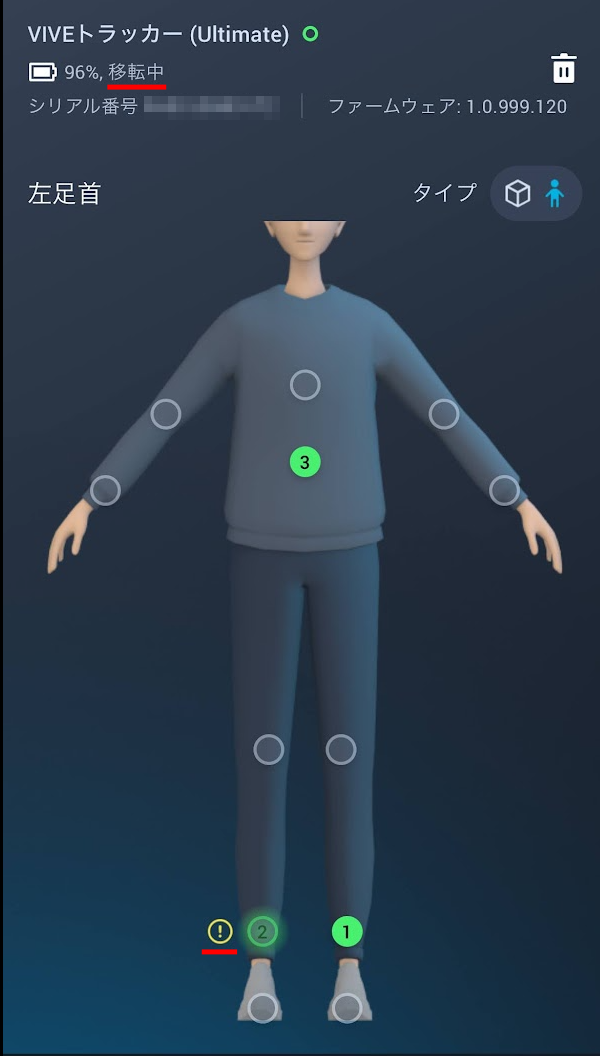
Here is a guide to troubleshoot tracking issues if you find this useful:
https://qiita.com/segur/items/8ba84a768a6ca9054803
Install VRChat
Search for VRChat in VIVE Manager's store and install it.
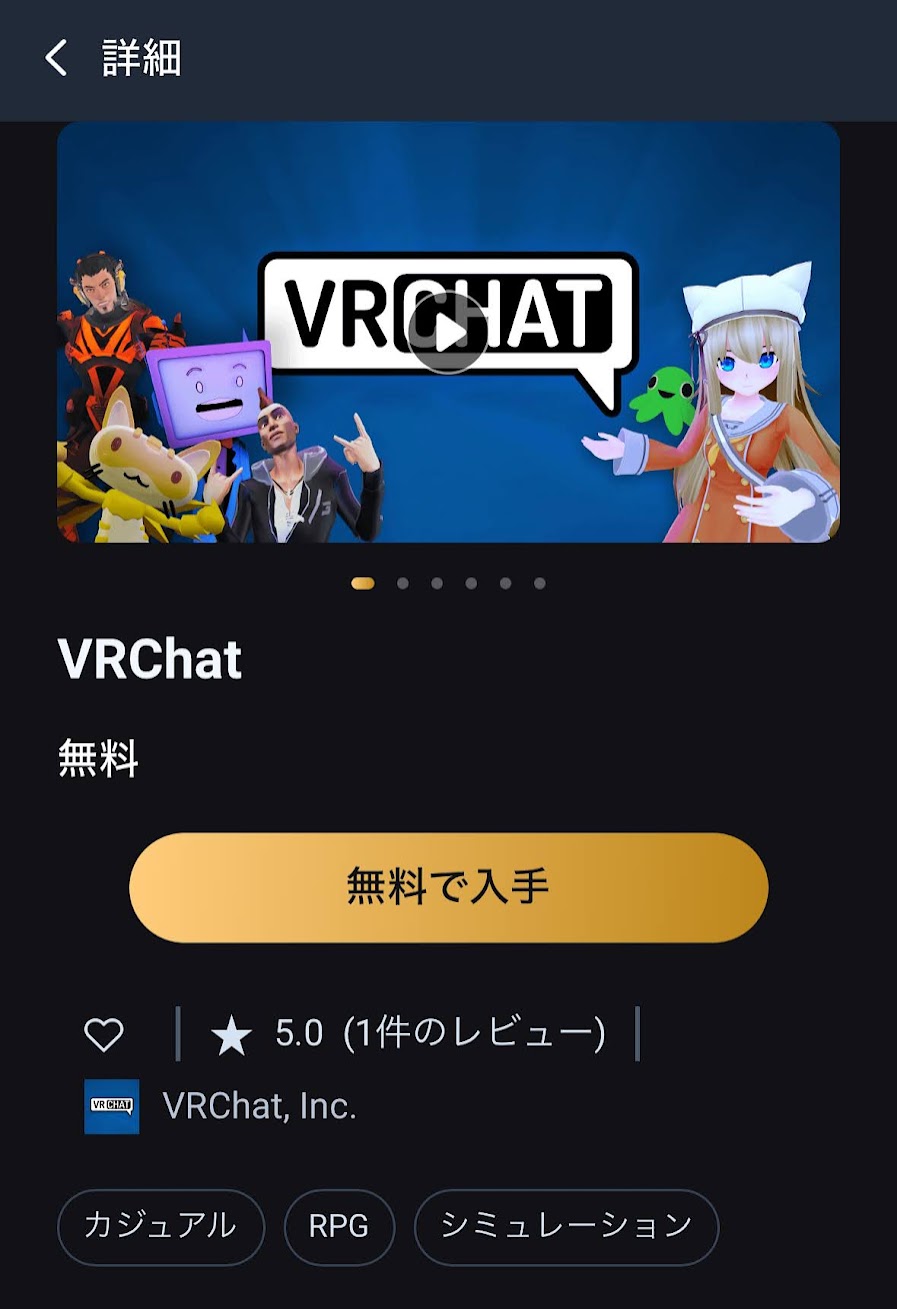
Log in using your VRChat account.
Configure Full-Body Tracking in VRChat
Launch VRChat and move in front of a mirror!
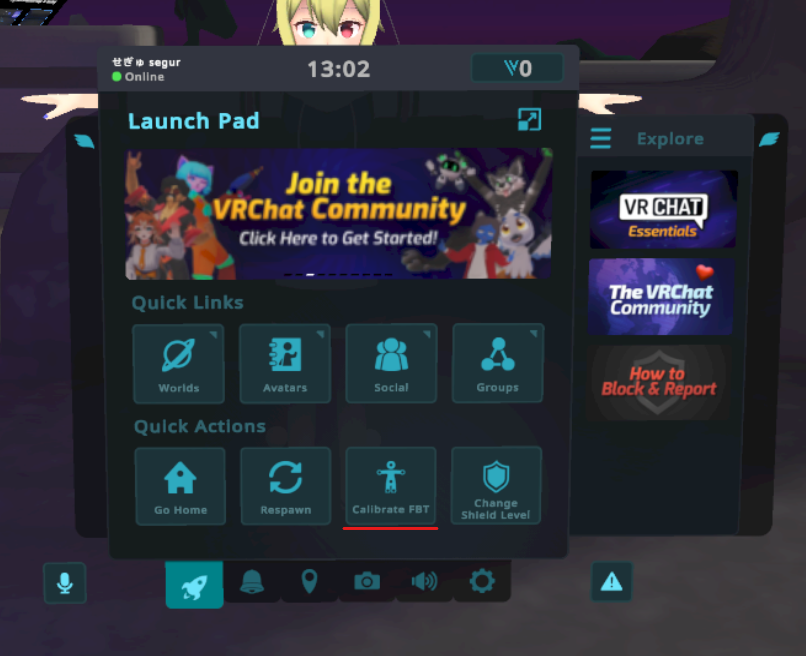
Open the Launch Pad and select Calibrate FBT!
Your tracker positions will appear as white balls. Since I attached my trackers to the waist, left ankle, and right ankle, I saw three balls. Align these with your avatar's body, then hold the trigger on both hand controllers simultaneously.
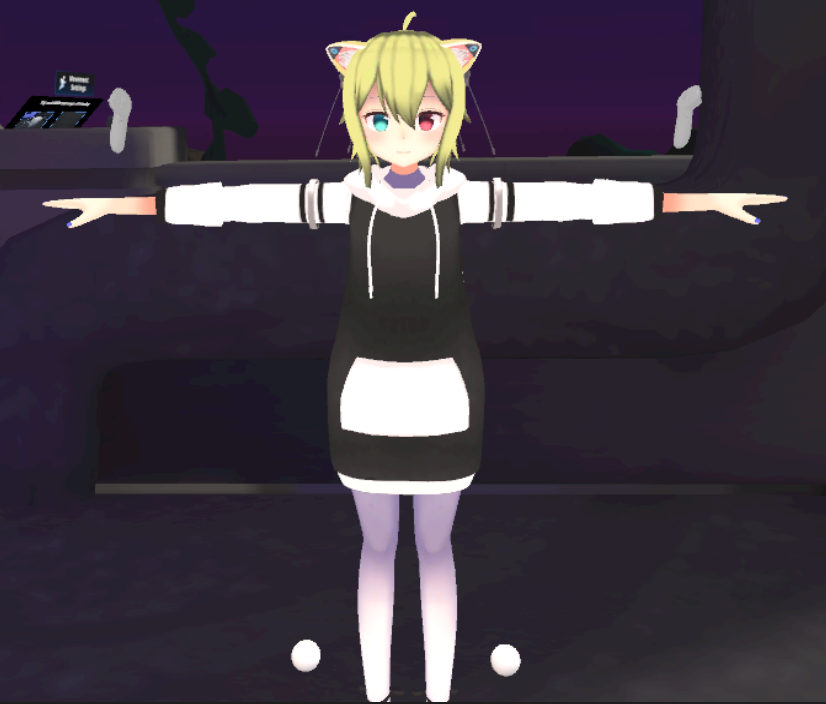
Congratulations! Now the legs of your avatar should move accordingly.
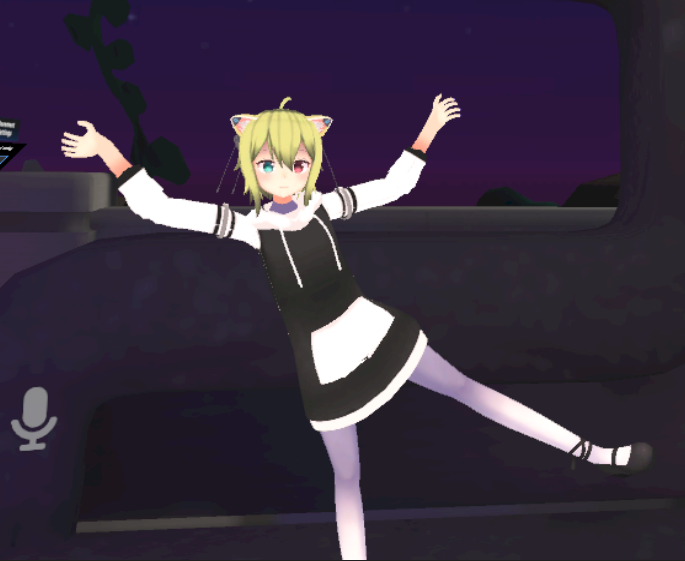
In my setup with three trackers plus head and hand points, I have six-point tracking, although up to five trackers can be used.
Can You Use Full-Body Tracking in SteamVR?
Connecting the VIVE XR Elite to your PC lets you play SteamVR games. Using VIVE Streaming for a wireless connection, I confirmed that you can play SteamVR without relying on a USB connection.
The question is: can you use the tracker with VIVE Streaming too?
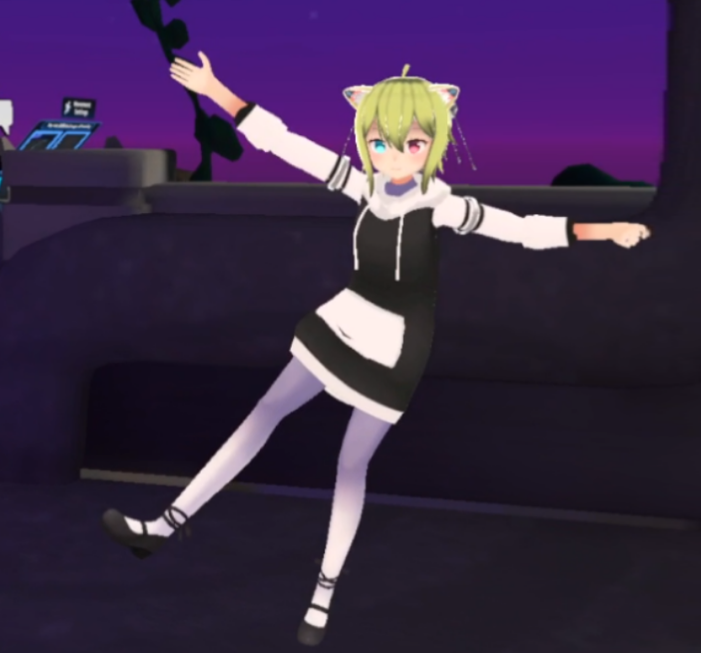
Upon testing, I confirmed that full-body tracking can also be configured in the SteamVR version of VRChat!
In Conclusion
I apologize for outsourcing some of the finer steps to the official documentation. The following resources were referenced for creating this article. Thank you!
- https://www.vive.com/jp/support/vive-xr/category_howto/setting-up-headset-for-the-first-time.html
- https://www.vive.com/jp/support/ultimate-tracker/category_howto/settinng-up-vive-ultimate-tracker.html
- https://vrchat-fbt.com/fullbodytracking_list/