GitHub Hands-On Part 5: Ignoring Files
This article is a translated version of my original post on Qiita. Original (Japanese): https://qiita.com/segur/items/2de61acfa73ce1eceac9
GitHub Hands-On Part 5: Ignoring Files
This article is part of the GitHub hands-on series, specifically Lesson 5. It assumes you have read the previous articles, so please keep that in mind.
GitHub Hands-On Series
- GitHub Hands-On Part 1: Individual Development
- GitHub Hands-On Part 2: Collaborative Development
- GitHub Hands-On Part 3: Branch Management
- GitHub Hands-On Part 4: Undoing Changes
- GitHub Hands-On Part 5: Ignoring Files ← Current Article
- GitHub Hands-On Part 6: Managing Large Files
Preparing the Repository
We'll use the GitPractice repository created in Lesson 1 Hands-On. If you have deleted the repository, please recreate it. Open the fork, fetch, and checkout to ensure your main branch is up to date.
Ignoring Files
What is an Ignore List?
There are files that you need in your working directory but don't want Git to manage. For example, when editing a Unity project, folders shown in the figure below are automatically generated. Even if you're not familiar with Unity, you might have seen similar behavior where tools automatically generate files or folders.
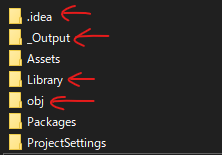
These folders store files that the tool automatically generates, so they don't need to be managed by Git. This is where the ignore list comes in handy, as it allows you to specify files and folders you want Git to ignore.
Setting temp.txt
Place a file named temp.txt in your working directory. You'll notice it appears under Unstaged, but imagine you don't want to commit this file.

Creating an Ignore List
Right-click on temp.txt and click Ignore > Ignore ‘temp.txt’.
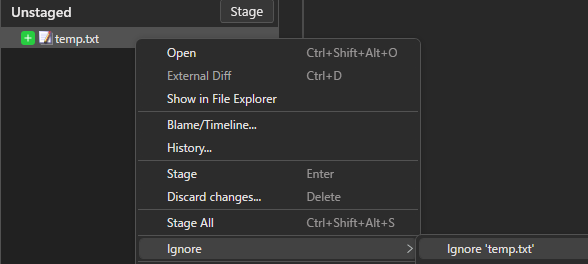
This generates a file named .gitignore.

The .gitignore file is your ignore list's configuration file. Inside, you'll see temp.txt listed.
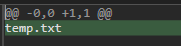
Commit this .gitignore file. You should see that temp.txt has disappeared from Unstaged.
Be careful not to commit temp.txt before the .gitignore.
Files committed before the .gitignore are not affected by the ignore list.
Creating Ignore Lists per Folder
Sometimes, files you wish to ignore vary by folder. In such cases, create a .gitignore for each folder.
Adding example.txt to Two Folders
Create two folders, FolderA and FolderB, and place an example.txt in each, as shown below.
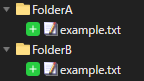
Suppose you want to ignore FolderB/example.txt but not FolderA/example.txt.
Adding example.txt to Top-Level .gitignore Excludes All
Open the .gitignore in a text editor and add a line for example.txt, then save it.

Both FolderA and FolderB's example.txt files will be ignored!
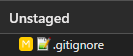
This is not ideal, so remove the example.txt line.
Adding FolderB/example.txt to Top-Level .gitignore Ignores FolderB Only
Now, add a line for FolderB/example.txt in the .gitignore.

This way, only FolderB is ignored!
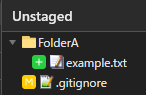
However, if FolderB is renamed, you'd need to update the .gitignore, which is tedious.
For simplicity, remove the FolderB/example.txt line.
Creating a .gitignore in FolderB
Create a .gitignore file directly in FolderB and add example.txt to it.

This will ignore FolderB only.
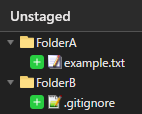
Now, even if FolderB is renamed in the future, the .gitignore doesn’t need modification! This is because .gitignore affects only its directory and below, making manageability easier. Remember this strategy for managing ignore lists.
Conclusion
That's it for this session! Thank you for participating. The next session will cover managing large files. I hope you continue to practice along with us!
https://qiita.com/segur/items/347345a489a963641306
This article was influenced by the following informative resource. Thank you!