GitHub Hands-on Session 6: Managing Large Files
This article is a translated version of my original post on Qiita. Original (Japanese): https://qiita.com/segur/items/347345a489a963641306
GitHub Hands-on Session 6: Managing Large Files
This article serves as the material for the sixth session of the GitHub hands-on series. It's expected that you've read the previous articles.
GitHub Hands-on Series
- Session 1: Individual Development
- Session 2: Collaborative Development
- Session 3: Branch Management
- Session 4: Undoing Actions
- Session 5: Ignore Lists
- Session 6: Managing Large Files ← Current article
Registering Files with LFS
What is LFS?
When you attempt to push files larger than 100MB to a server, you'll encounter an error. LFS (Large File System) is a system designed to prevent such errors.
Creating a New Repository
To smoothly proceed with the hands-on, create a new repository on GitHub.
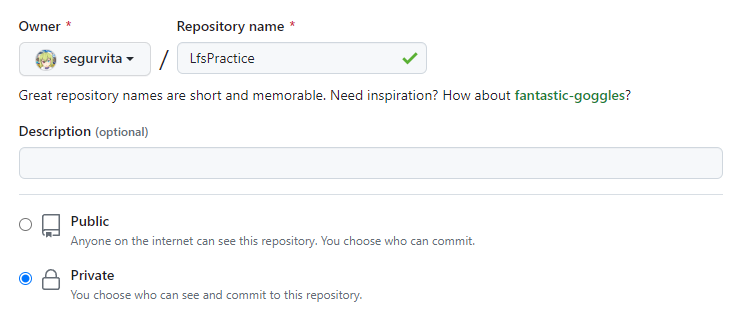
Owner: Your personal accountRepository name:LfsPractice- Choose
Private - Avoid selecting
Public.
Clone this repository and open the local repository with Fork. To facilitate further work, create and commit a README.md or similar file if no commits exist.
Placing a Large File
Download Sample101MB.bin, a 101MB file filled with random data (feel free to use it!). Place it in your working directory.
Attempting to commit and push this file will yield the following error:
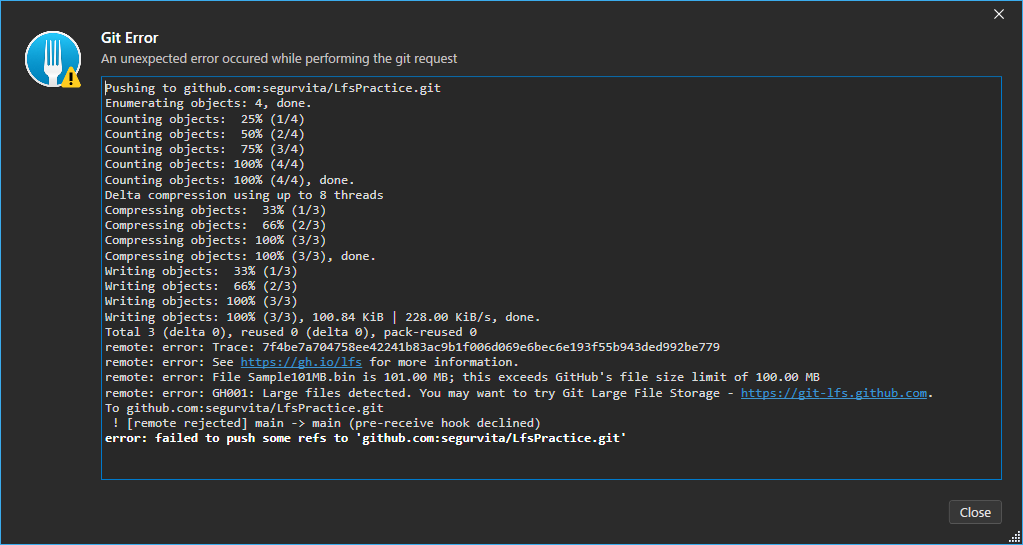
remote: error: File Sample101MB.bin is 101.00 MB; this exceeds GitHub's file size limit of 100.00 MB remote: error: GH001: Large files detected. You may want to try Git Large File Storage - https://git-lfs.github.com.
In summary:
A large file over 100MB has been detected. Please use LFS.
Perform a Mixed Reset to revert to the state before the large file was committed. (Refer to Session 4 if you're unfamiliar with Mixed Reset.)
Enabling LFS
Execute Repository > Git LFS > Initialize Git LFS.
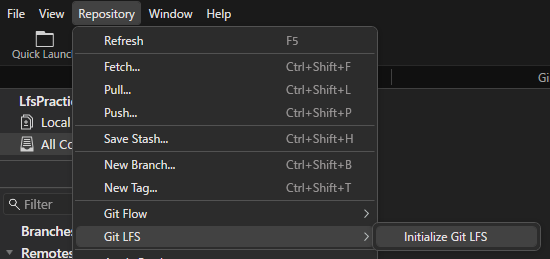
This step is necessary for each repository!
If Initialize Git LFS isn't visible, LFS may already be enabled!
Placing the Large File Again
Right-click on Sample101MB.bin and click LFS > Track 'Sample101MB.bin'.
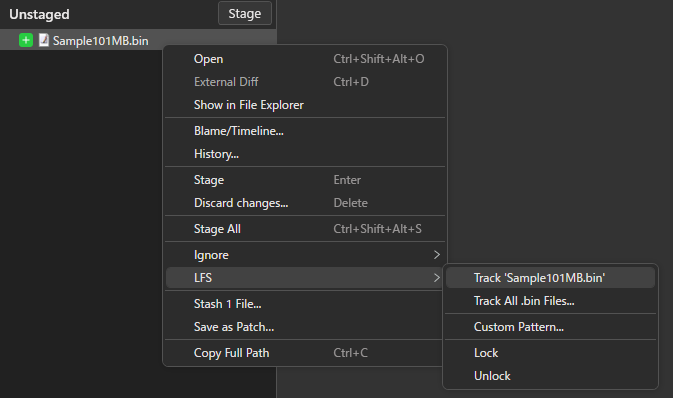
This action generates a .gitattributes file.
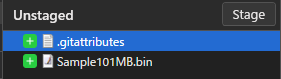
This file configures LFS, indicating that Sample101MB.bin is tracked.

First, commit only the .gitattributes file. Then, commit Sample101MB.bin. Ensure .gitattributes is committed before Sample101MB.bin. Committing both simultaneously is fine.
Pushing to the Repository
Try pushing again. This time, it should succeed without issues!
Checking Files Registered with LFS
Verifying LFS Files in the Repository
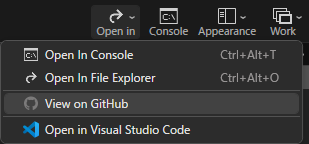
From Fork, click Open in > View on GitHub to access the remote repository page.
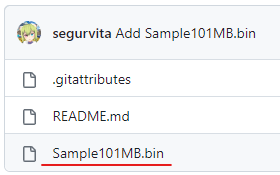
Click on Sample101MB.bin.
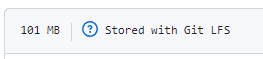
The label Stored with Git LFS confirms this file is registered with LFS.
Listing Repositories Using LFS
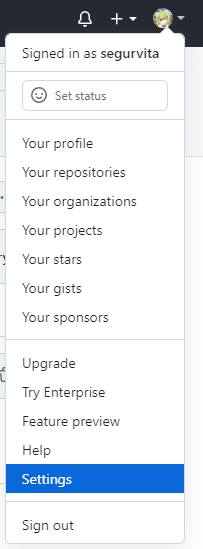
Click on Settings at the top right of GitHub.
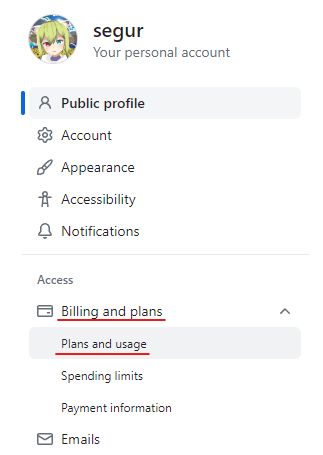
In the sidebar, go to Billing and plans > Plans and usage.
Scroll down and click Git LFS Data > Storage.
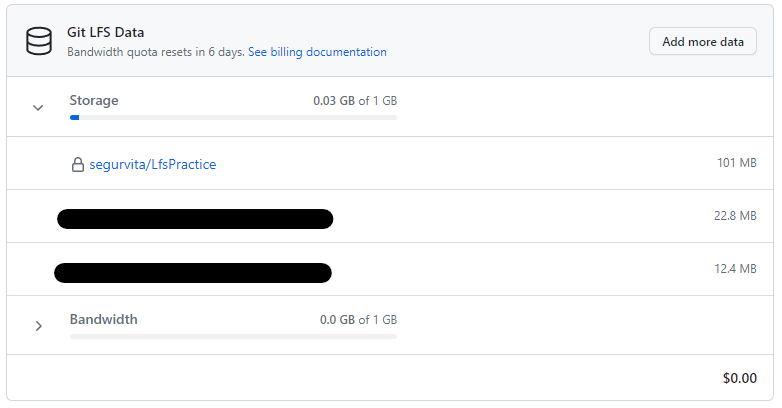
Here, you'll see the list of repositories utilizing LFS. Free plans allow up to 1GB. For subscriptions exceeding 1GB, manage costs wisely by keeping the number of large files low.
Removing Files from LFS
To save on GitHub costs, unnecessary files should be removed. However, deleting LFS files can be quite challenging.
Deleting Files from LFS
The process requires:
- Amend commit history to eliminate large file commits.
- Disable the LFS feature in the repository.
- Delete and recreate the repository.
See Removing files from Git Large File Storage - GitHub Docs for detailed steps.
Due to the complexity, this process is not covered in this hands-on session. Sorry for any inconvenience.
Deleting the Repository
In this hands-on, we will delete the repository to remove LFS data. Delete the LfsPractice repository.
Go to the repository page and click Settings in the upper-right corner.

Scroll down and click Danger Zone > Delete this repository.
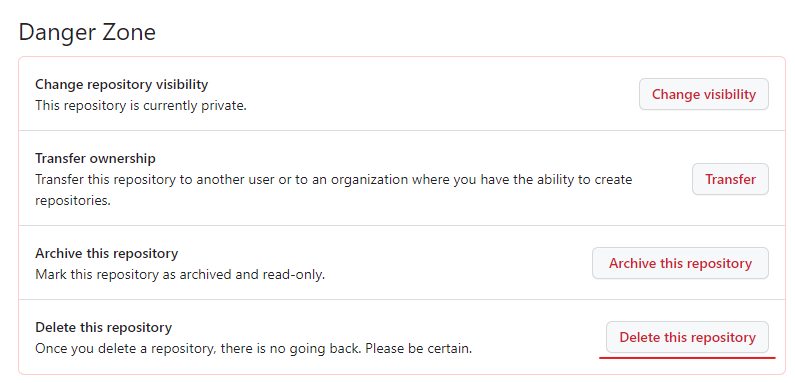
Follow the prompts to reach a screen like this.
Type the repository name and click Delete this repository.
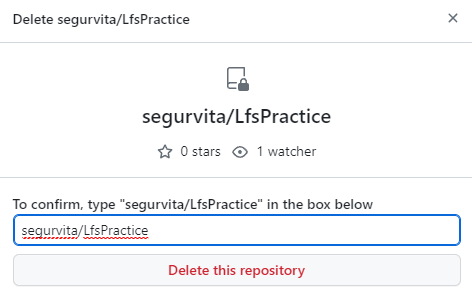
You'll be asked for your GitHub password. Enter it to proceed.
Once directed back to the repository list, the deletion is successful. Additionally, checking Billing will show LfsPractice removed from Git LFS Data > Storage.
Conclusion
This article was informed by the following documentation. Thank you!
This concludes the GitHub hands-on series!
For those who've followed through everything, GitHub and Forks shouldn't be daunting anymore!
I hope this series has been helpful!
Feel free to follow me on Twitter, especially if you're interested in VR and AR content!
Thank you, and great job!