Solving the Issue of Thicker Than Normal Outlines Using Unity's Toon Shader 2.0 on Android
This article is a translated version of my original post on Qiita. Original (Japanese): https://qiita.com/segur/items/4a3a1d34374384840937
Resolving Excessive Outline Thickness in UnityChan Toon Shader 2.0 on Android
When using UnityChan Toon Shader 2.0, I encountered an issue where outlines appear excessively thick on Android compared to iOS. This article documents the cause and resolution process for this problem.
Overview of the Issue
Symptoms
The GIF below demonstrates the problem manifesting.

As the camera moves further away from SD Unity-Chan, the skirt appears darker, along with the shoulder fabric and Unity logo on the chest. This darkening seems to be the result of excessively thick outlines. While this issue does not occur on iOS, it does appear on Android. Testing on other platforms revealed the same issue on WebGL as well.
| Platform | Symptoms |
|---|---|
| Windows | None |
| macOS | None |
| iOS | None |
| Android | Present |
| WebGL | Present |
Operating Environment
Here are the software versions I tested:
| Software | Version |
|---|---|
| Unity | 2019.4.29f1 2022.3.24f1 |
| UnityChanToonShader | 2.0.9 |
This phenomenon occurred not only with SD Unity-Chan but with other characters as well.
Investigation Process
The following details the investigations conducted. Feel free to skip to the conclusion if you prefer.
Checking _Outline_Width
I first inspected the code responsible for calculating outline thickness. The parameter _Outline_Width influences the thickness, displayed in the Inspector as Outline Width.
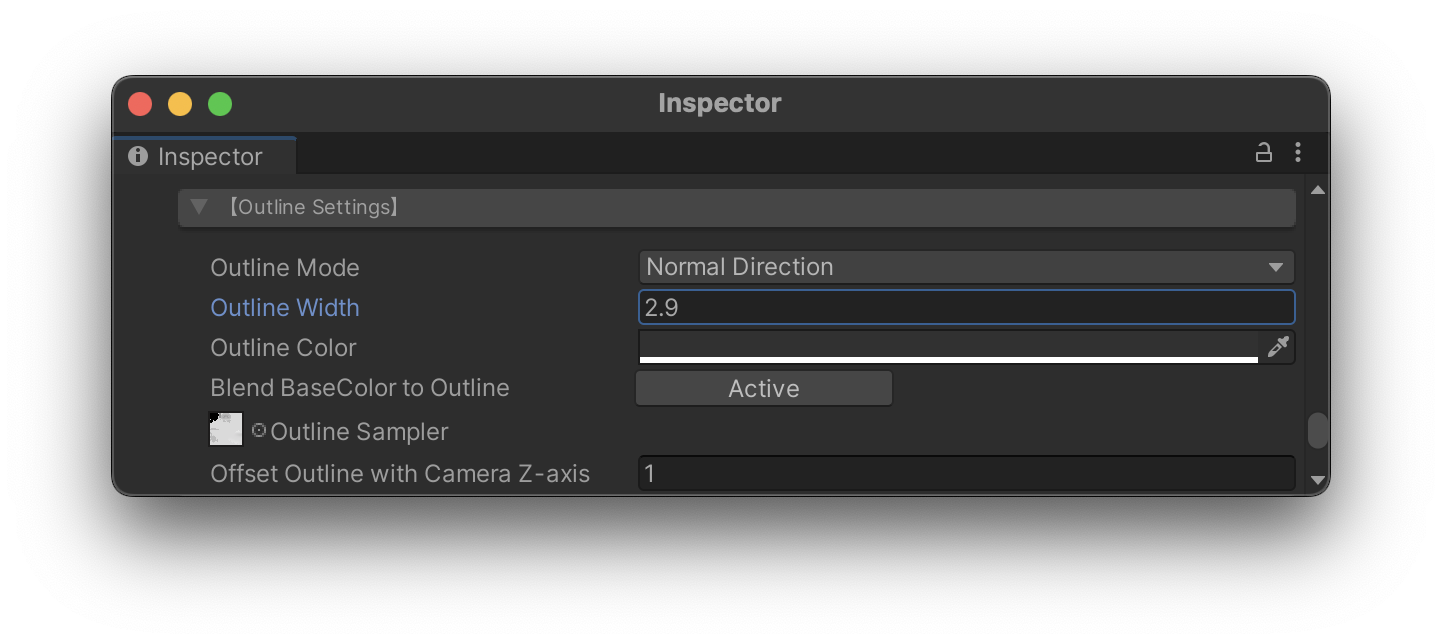
I set this parameter to zero, anticipating a reduction in outline thickness to zero and resolving the issue, but no improvement was observed. Thus, _Outline_Width was not the cause.
Examining the Impact of _Offset_Z
Next, I investigated the _Offset_Z parameter, which appears in the Inspector as Offset Outline with Camera Z-axis.
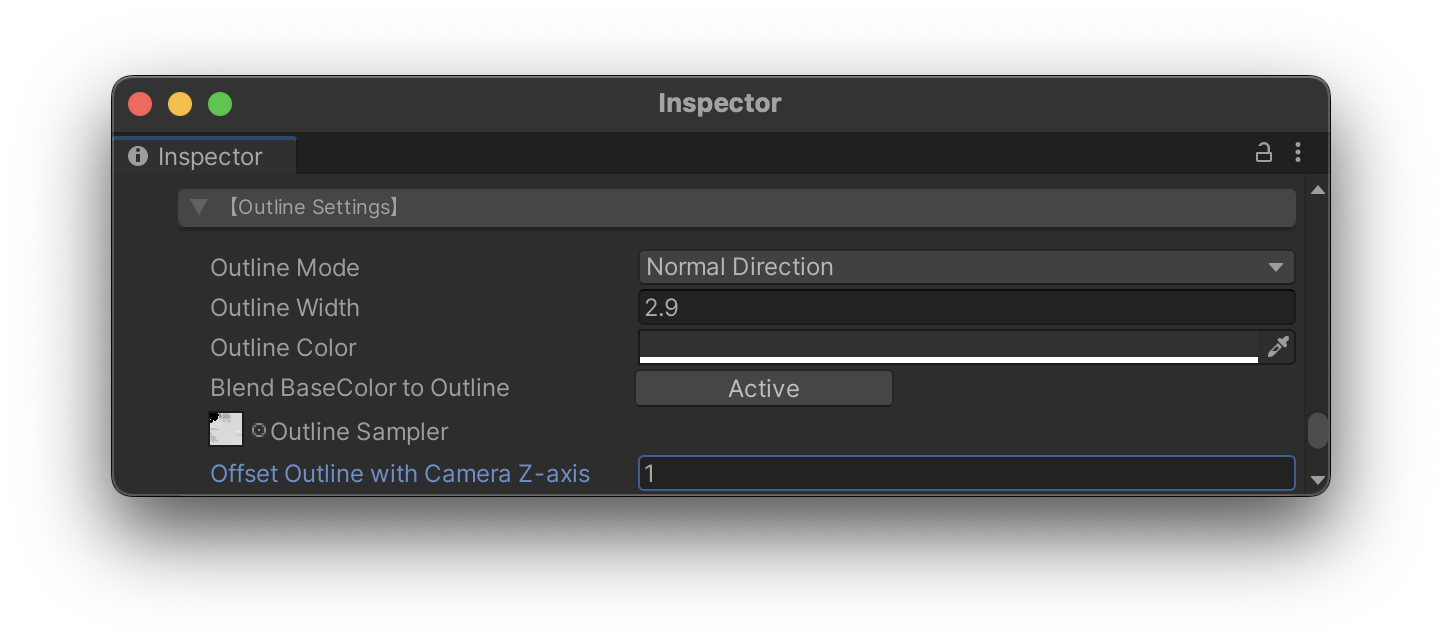
This parameter adjusts the amount the outline offsets toward the depth direction (i.e., camera front). Adjusting this value revealed that bringing _Offset_Z closer to zero alleviated the symptoms! This points to an issue with the outline offset processing.
Difference in Clip Space Depth Range as the Cause
Further investigation indicated that the results of the computation below vary greatly across platforms.
float4 _ClipCameraPos = mul(UNITY_MATRIX_VP, float4(_WorldSpaceCameraPos.xyz, 1));
Ultimately, the difference in graphics API depth range was identified as the cause. According to Unity's official documentation:
https://docs.unity3d.com/ja/2018.4/Manual/SL-PlatformDifferences.html
- Direct3D family: The clip space depth range spans from 0.0 at the near clip plane to +1.0 at the far clip plane. Applies to Direct3D, Metal, and consoles.
- OpenGL family: The clip space depth range spans from -1.0 at the near clip plane to +1.0 at the far clip plane. Applies to OpenGL and OpenGL ES.
In summary,
- Windows, mac, iOS: Depth range
[0, 1] - Android, WebGL: Depth range
[-1, 1]
This discrepancy resulted in platform-specific depth calculation differences.
Fix Implementation
To standardize depth calculations, I added the following function:
// Computes the depth value based on the platform's graphics API
float compute_depth(float4 clip_pos) {
#if defined(SHADER_API_D3D11) || defined(SHADER_API_METAL)
    return clip_pos.z;
#else
    return (clip_pos.w - clip_pos.z) * 0.5;
#endif
}
And modified the offset processing to use this function:
o.pos.z = o.pos.z + _Offset_Z * compute_depth(_ClipCameraPos);
This change resolved the issue! The corrected display is verified to work correctly across WebGL, Android, and iOS.
| Before Fix | After Fix |
|---|---|
|
 |
Conclusion
Unforeseen platform-specific issues such as these are fairly common in engineering. If you encounter a similar phenomenon, I hope this solution serves as useful guidance.
This article was prepared with reference to the following. Thank you!
- https://docs.unity3d.com/ja/2018.4/Manual/SL-PlatformDifferences.html