GStreamer Study Session #3: Display RTSP Streaming Video in Unity!
This article is a translated version of my original post on Qiita. Original (Japanese): https://qiita.com/segur/items/664f350dbbbb0dcb4668
GStreamer Study Session #3: Display RTSP Streaming Video in Unity!
Hello! This is the third entry in the "GStreamer Study Session" series.
In this article, we will explain how to display video streamed via RTSP in Unity.
If you haven't read the first session yet, we recommend starting with the installation guide!
- Session 1: https://qiita.com/segur/items/2585dbf5a51ce7acec3b
- Session 2: https://qiita.com/segur/items/e88a293cf9dc49ed08ec
- Session 3: This article
Target Audience for This Article
This article is intended for those familiar with Unity and C# but new to GStreamer or RTSP.
Converting RTSP Video to JPEG and Sending via TCP
Unfortunately, Unity doesn't support RTSP reception out of the box.
For receiving RTSP in Unity, a high-performance paid asset called AVPro Video is commonly used. However, there are codec and performance tuning challenges. On the other hand, GStreamer offers flexible pipeline configurations, making video processing tuning easier. Therefore, we will introduce a GStreamer-based method.
This article focuses solely on video and does not cover audio.
Architecture Overview
[Camera]
    ↓
[GStreamer] Streams camera video in MJPEG over RTSP
    ↓
[GStreamer] Receives RTSP, decodes to JPEG, sends via TCP
    ↓
[Unity] Displays JPEG as Texture2D
On the GStreamer Side – Streaming MJPEG over RTSP
The RTSP streaming setup is the same as in the previous session.
https://qiita.com/segur/items/e88a293cf9dc49ed08ec
Run the following script to start the RTSP server and begin streaming the camera video.
python rtsp_mjpeg_server.py
If successful, it will stream at the following URL:
rtsp://localhost:8554/stream
Refer to the previous article if it doesn't start smoothly.
Sending JPEG Stream via TCP
In another command prompt, run the following to convert the RTSP-streamed video to TCP and send it to Unity.
gst-launch-1.0 rtspsrc location=rtsp://localhost:8554/stream latency=0 ! decodebin ! videoconvert ! videoscale ! video/x-raw,width=320,height=240 ! jpegenc ! tcpserversink host=127.0.0.1 port=5050
The latency=0 parameter is for reducing delay. To reduce data volume, the resolution is set to 320x240. Each frame is encoded as a JPEG image using jpegenc and sent via TCP to make it easier to handle in Unity.
Explanation of Used Elements
In GStreamer, small processing units called elements are connected in a pipeline.
| Element | Role |
|---|---|
rtspsrc |
Source element that receives the RTSP stream. It captures video streamed over the network via RTSP. |
decodebin |
Automatically identifies and decodes the input stream format, converting compressed video/audio to raw data. |
videoconvert |
Converts video formats, adjusting them for subsequent elements (e.g., pixel formats). |
videoscale |
Makes it possible to change the video resolution. |
jpegenc |
Converts video frames to JPEG format. |
tcpserversink |
Sink (output) element for sending JPEG and other data over TCP. It can be directly connected to clients like Unity. |
Receiving TCP in Unity
Open your Unity project and create a folder Assets/_MjpegReceiver/Scripts.
(The folder path can be anything, but for simplicity, this guide assumes the path above.)
Place the following four scripts inside the Assets/_MjpegReceiver/Scripts folder.
https://gist.github.com/segurvita/ea3e550069d9559a2c48e03b71f08649
Next, create a scene named MjpegReceiver directly under the Assets/_MjpegReceiver folder.
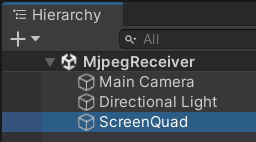
Place a Quad in the scene and rename it to ScreenQuad (see the image below).
Attach Assets/_MjpegReceiver/Scripts/MjpegReceiver.cs to this ScreenQuad.
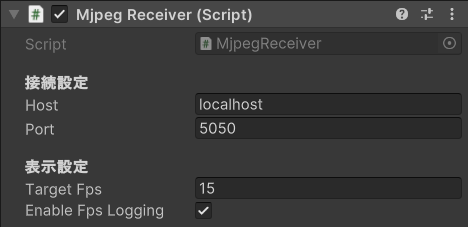
When you play the scene, video should display in real-time on the ScreenQuad.
If It Doesn't Display
Ensure that neither rtsp_mjpeg_server.py nor gst-launch-1.0 processes have stopped.
Conclusion
This concludes the GStreamer Study Session series!
I started researching methods to display RTSP-received video in Unity because I couldn't find any information and decided to investigate independently, which led to this study session.
If you found this article helpful, please give a like or leave a comment as it provides motivation!
Thank you for your hard work!